Cart
Cart
Cart Management
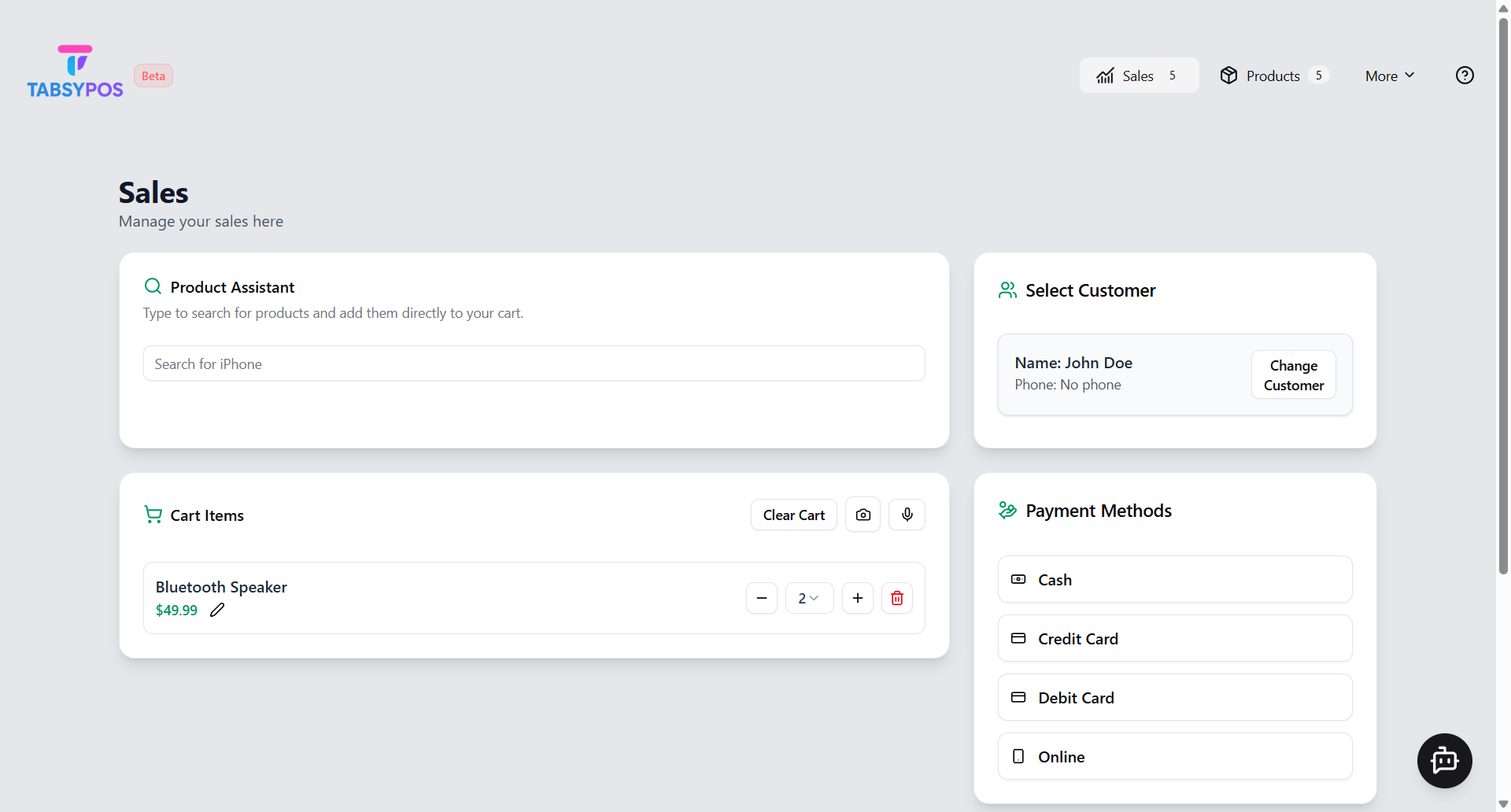
Update Item Price & Quantity After adding items to the cart, you can easily modify their details. Click the edit icon beside an item to update its price, or adjust the quantity using the plus (+) and minus (–) buttons, or by entering the desired number directly in the quantity input field. All changes are applied instantly and reflected in the cart total.
Delete Item from Cart To remove a product, click the delete icon next to the item in the cart. The system will instantly update the cart total after deletion.
Audio Mode
You can use Audio Mode to add items to the cart one by one using voice commands. This feature allows hands-free operation, making it easier to process sales in busy store environments.
Add Items to Cart by Scanning Barcode You can use Scan Mode to add items to the cart by scanning product barcodes. Click on the camera icon, show the barcode in front of the camera, and the system will automatically detect and add the item to the cart.
Scan Mode also supports continuous scanning, allowing you to scan multiple products one after another without manually tapping anything - making the billing process faster and more efficient. >
> Note: Scan Mode currently supports Code-128 barcode format only.
>
Reset Price to Original If a product’s price has been manually changed in the cart, you can quickly revert it to its original listed price. Click the Reset to Original button on the edit cart popup, and the system will automatically restore the original product price as defined in the product list.
Clear Cart Use the Clear Cart option to remove all items from the current cart at once. The system will ask for confirmation before clearing to prevent accidental loss of data.
Assign Customer to Cart or Add a New One
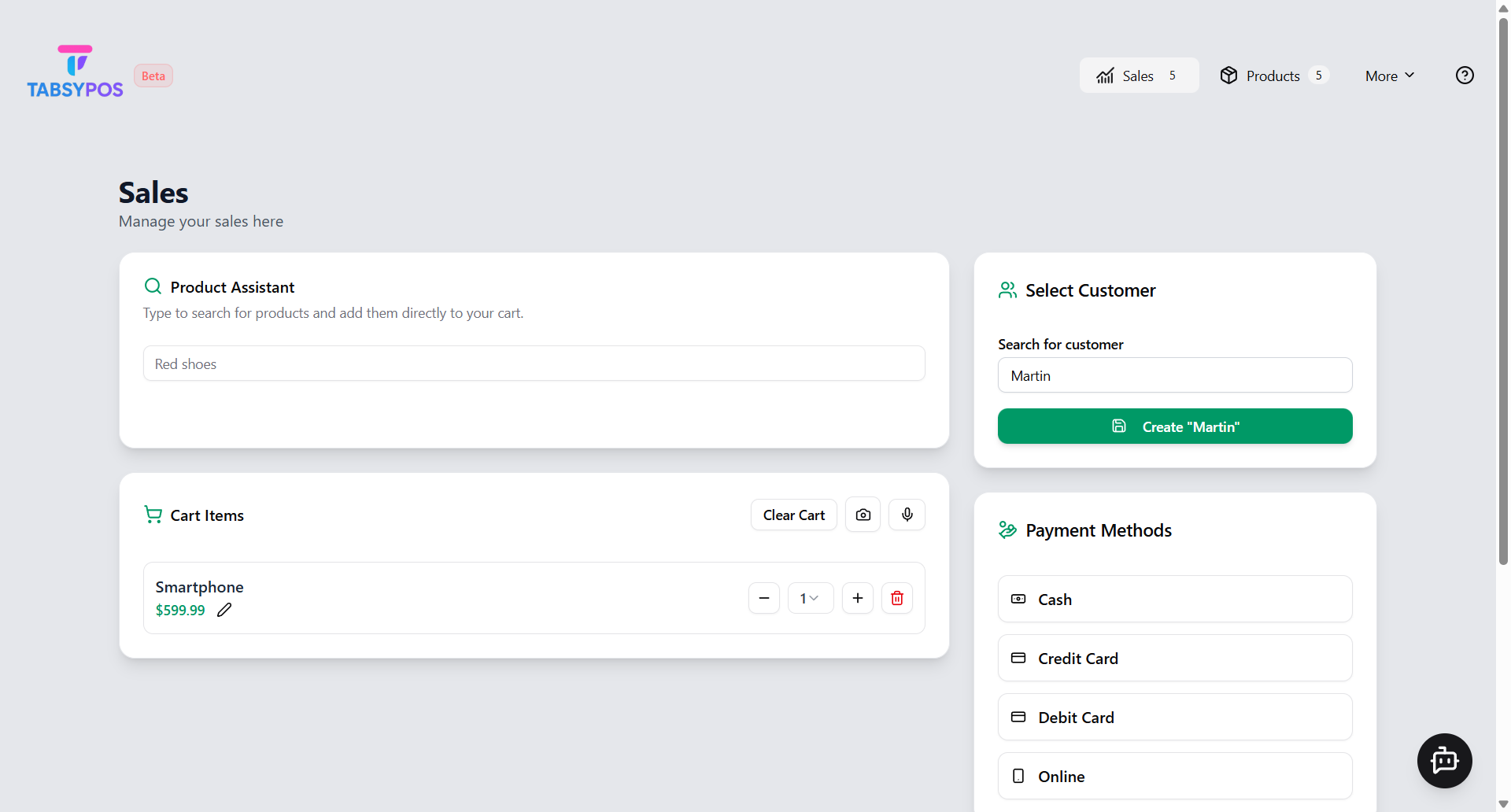
You can assign a customer to the current cart by selecting an existing customer from the list or creating a new one. Once assigned, the customer’s information is linked to the cart, making it easier to track transactions and maintain accurate records.
Change Customer on the Same Cart
If you need to switch the customer during checkout, simply click Change Customer and select another one from the list. The products already added to the cart remain unchanged, ensuring a smooth transition without losing any sale details.