
Settings
Settings
AI Assistant
TabsyPOS offers free AI assistance to help streamline cart management with intelligent, AI-driven features.
Note: Voice search is browser-based and does not depend on any AI model.
Free AI Assistance & Usage Limits
TabsyPOS provides AI assistance for cart management that you can use for free up to 100 AI requests. This allows you to start using AI features instantly without any additional configuration.
If your usage exceeds the free limit, you can continue using AI features by configuring your own OpenRouter API key in the AI Model Settings. Once configured, all AI requests will be processed using your OpenRouter account.
OpenRouter AI Model
TabsyPOS supports the OpenRouter AI model for providing AI assistance across features such as cart management. When you configure your own OpenRouter API key, the system uses free OpenRouter models, allowing you to continue using AI features at no additional cost, subject to OpenRouter’s terms and usage limits.
Important: Because OpenRouter is an online third-party integration, AI features will not work when you are offline.
Model Configuration
Follow the steps below to set up the OpenRouter API Key:
- Go to https://openrouter.ai/
- Log in to your account.
- Open your Profile.
- Navigate to the Keys section.
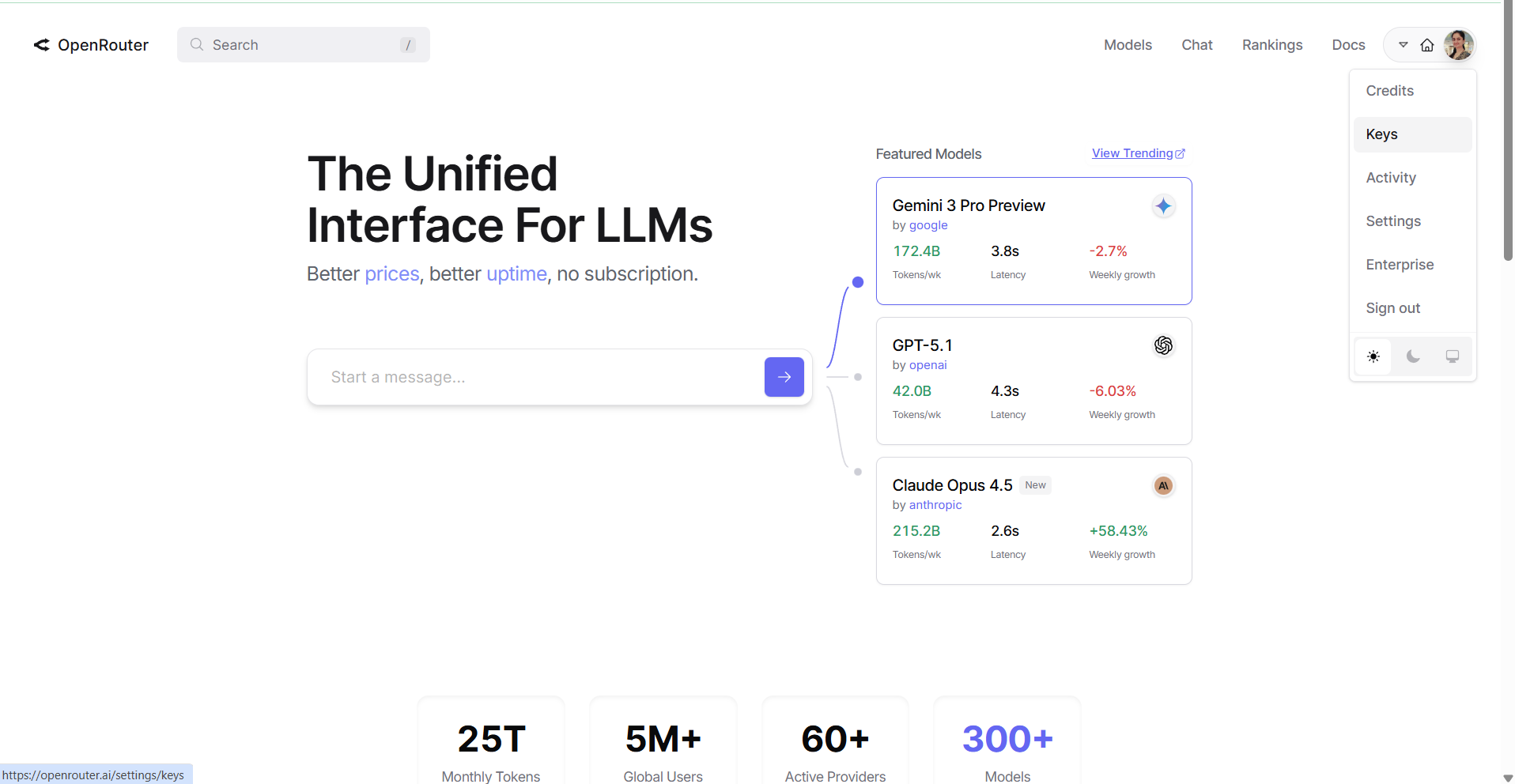
- Click Create API Key.
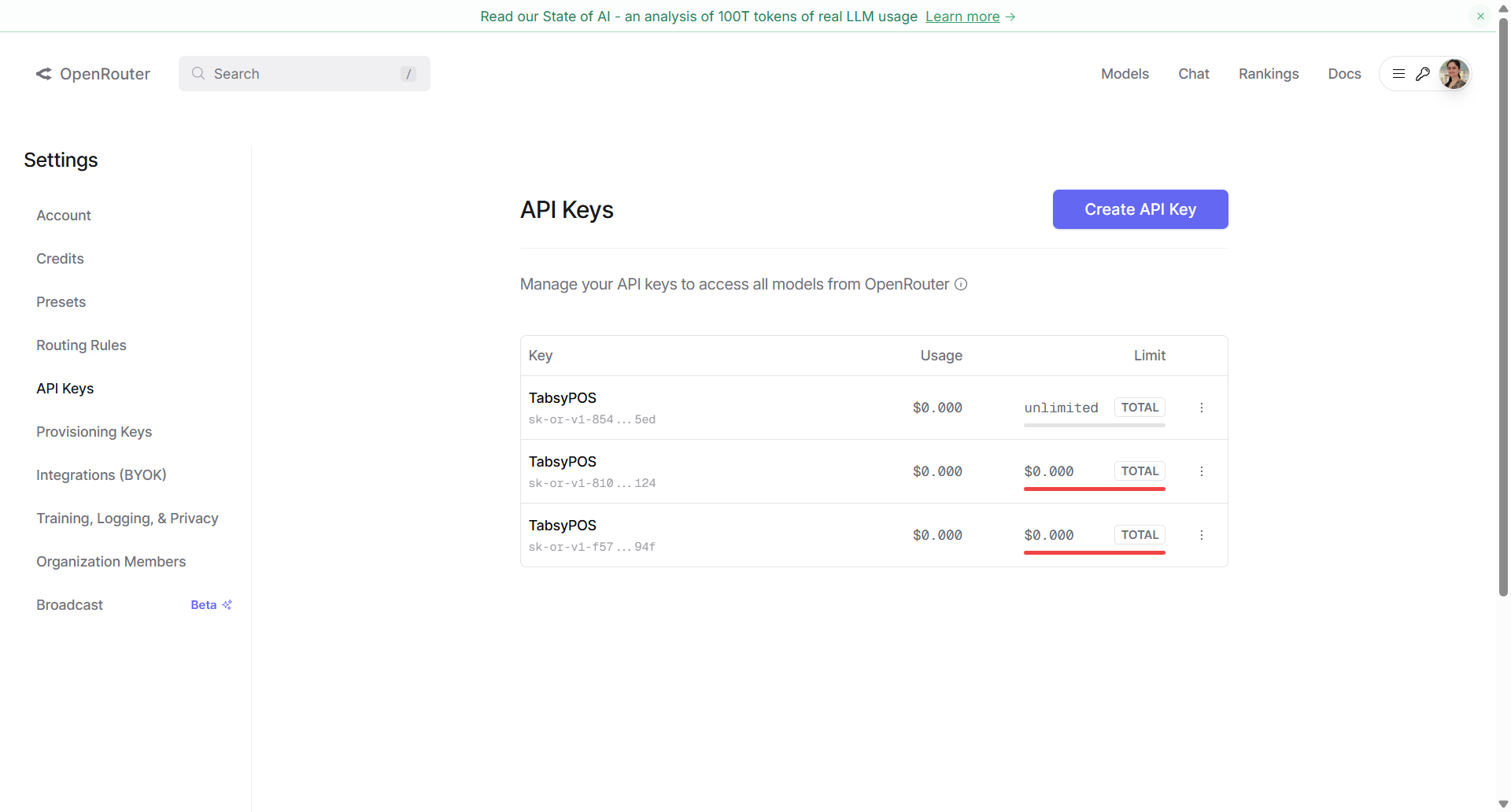
- Enter a Name for your key.
- Set Credit Limit (Recommended: 0).
- Leave Reset Limit Every as the default.
- Leave Expiration as the default.
- Click on Create
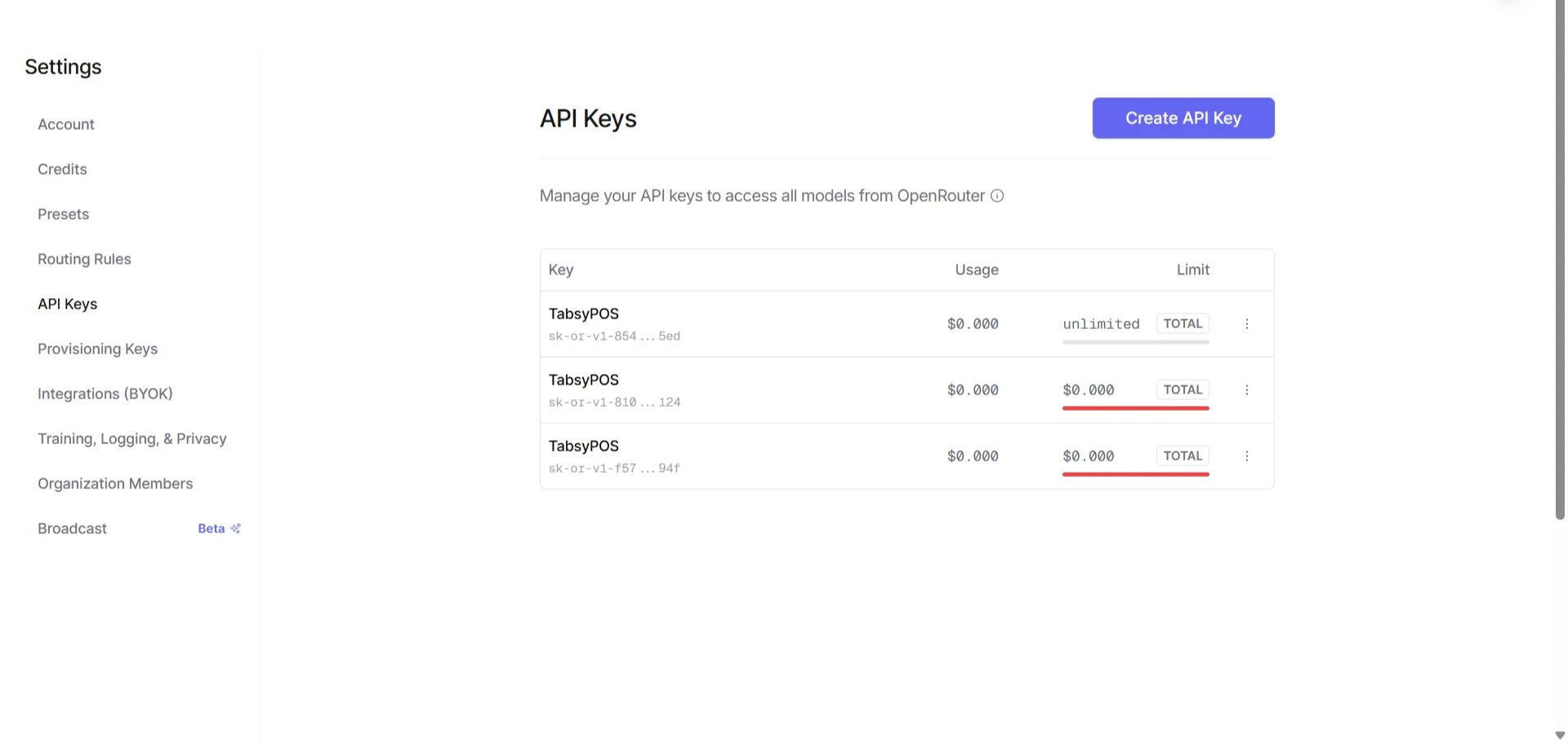
- Copy the generated key (Note: It will be shown only once).
- In TabsyPOS, go to Settings → AI Model.
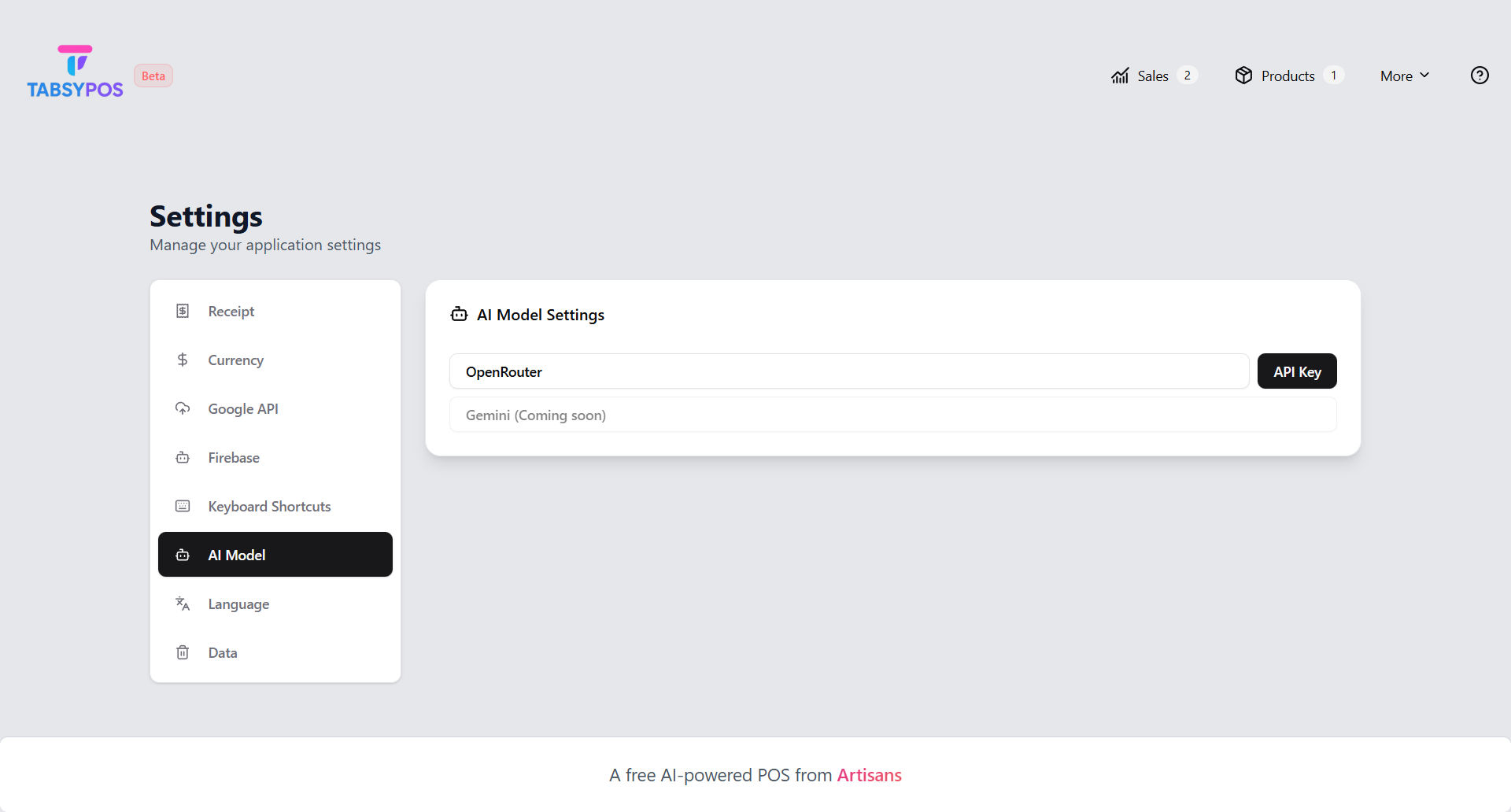
Click API Key and paste your key and click Save.
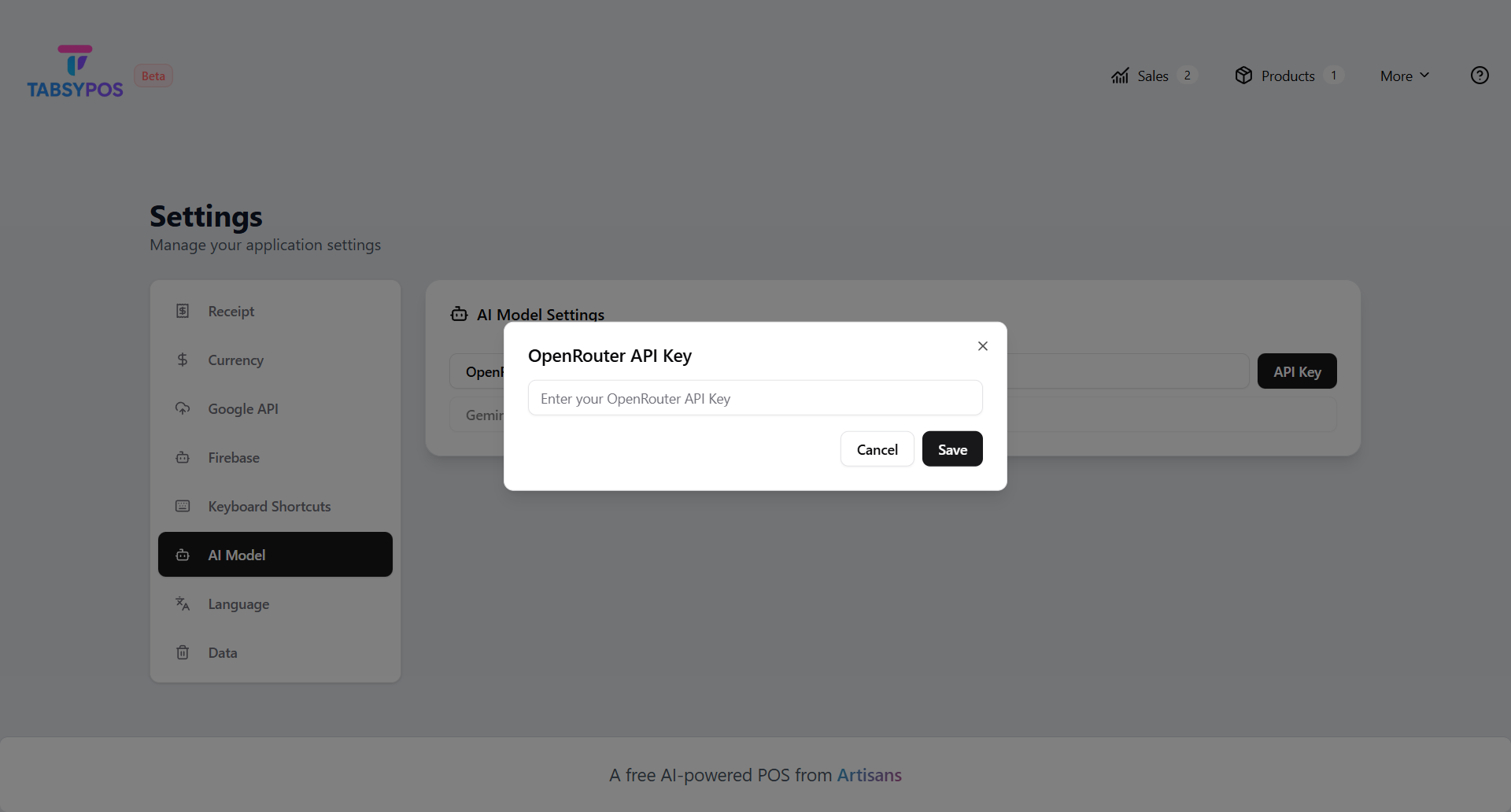
Your AI model setup is now complete and ready to use.